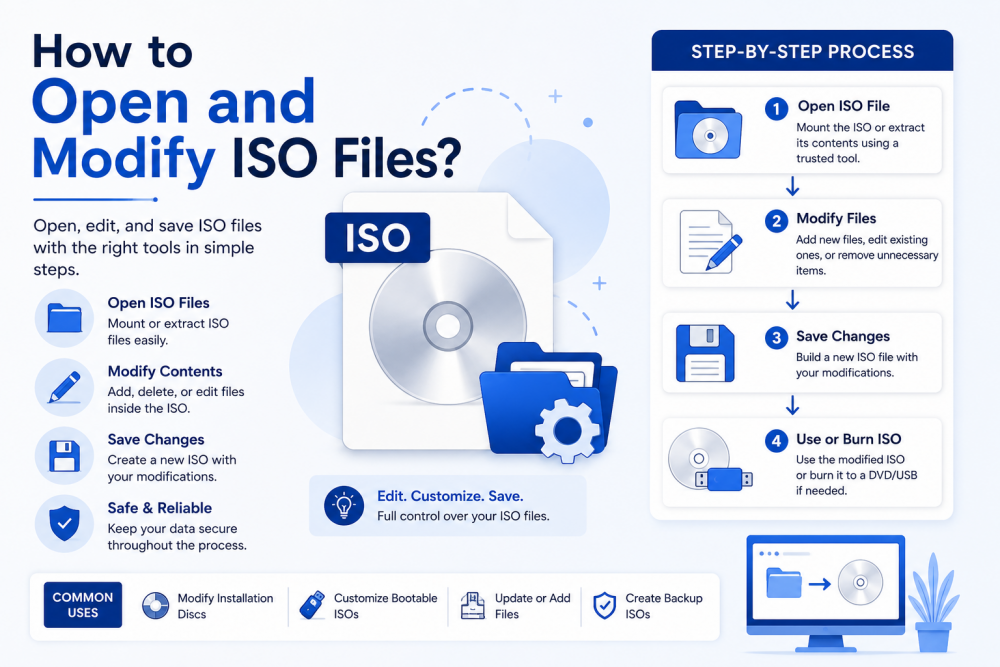
Overview: In this tutorial, you will know how to open and modify ISO files using different techniques. Also, cover different aspects like what & why to edit iso image files.
ISO are most frequently used file formats in order to store complete information of CD, DVD, Blu-ray, operating systems, software installers and backups. It is a disk image that has all files and folders inside it. Thus, many users need to open, modify, or update their existing software packages. It includes files, eliminates irrelevant content or customize present installation media.
What is an ISO File?
Talking about ISO files, these are exact copies of optical discs. It generally stores:
- Files and folders
- Boot information
- File system structure
- Disc configuration
Rather than giving physical disk, software distributors give user options to download and mount ISO files directly.
Also Read: How to Edit ISO File Efficiently?
Reasons to Modify ISO Files – Points to Consider
Many times users need to modify ISO file content. Here, are some potential reasons:
- To include updated versions of software or the drivers and patches
- Large ISO files are usually stored with unwanted files which takes lot of your space
- Windows installation media are often edited by IT administrators before making it active
- Need to add more files in order to share or archiving ISOs
- In general, you will need to check and fix errors before using the downloaded iso images
- Additionally, organizations might have older installation media and need to update specific components
Is it Possible to Edit ISO Files Directly?
The answer is No. You cannot edit an ISO file directly as a Word document or ZIP archive.
For doing this, you must follow these three steps:
- Extract the ISO contents
- Make necessary changes
- Create a new ISO file
This process may take some time, particularly for bigger ISO images. But, don’t worry! With the help of our professional tool, you can directly edit your existing ISO files. In the coming section, you will get to know.
How to Open ISO Files on Windows Environment?
To mount ISO files, this function is already given by Windows 11/10 to their users.
Method 1. Through File Explorer
- Firstly, locate your ISO file
- Next, right-click on it
- Select Mount option
- This will give you a ‘virtual drive’ on your PC
- Now, double-click the drive to view the content present inside
Advantages:
- No additional software required
- Easy access to the files
Limitations:
- Access in Read-only mode
- You cannot change files within ISO
How to Open ISO Image Files on a Mac System?
Have a look into these quick steps to modify ISO files on macOS.
1. Using Finder
- Double-click on your ISOs
- macOS will automatically mounts the image file
- Now, browse the mounted volume from Finder itself
Advantages:
- Simple process
- Native support
Limitations:
- Does not allow direct editing
- ISO must be recreated after changes are made
Open, Modify, & Rebuild ISO Files Using Manual Methods
This is the most popular method by which you can edit ISO file content as per your need.
Step 1. Extract ISO Contents
You can use tools such as:
- 7-Zip
- WinRAR
- Built-in extraction tools
- Unzip them into some local directory.
Step 2. Modify the Content
In order to edit ISO file content, you can perform these below steps:
- Add files
- You can delete content too
- Rename folders
- Update configuration files anytime
Step 3. Create a New ISO
After you made the changes:
- Select the updated folder
- Here, you can use our professional tool
- With the help of this, generate a new ISO image
Users face Problem While Modifying ISO Manually
While manual methods come with certain levels of challenges.
- ISO files can therefore take time to extract and extract them completely
- You will require some additional disk space for:
- Original ISO
- Extracted content
- Modified ISO
- If altered incorrectly, it can result in unusable ISO
- Wrong changes can damage boot information
- It is hard to operate advanced ISO creation settings for many users
- There are usually several different apps that users can open, extract, edit, or rebuild
Open & Modify ISO Files Easily with our Professional Solution
ISO files are not easy to edit for many users, since the manual methods involve several steps like first extract, modify, and recreate the ISO again. This can take a while and corrupts the folder structure or creates an iso file which will not work. So, you can use SysTools ISO Editor which allows users to open, view, add, delete and manage content of the ISO file in a single place for convenience.
Key Features:
- Access the contents of an ISO file with no mean configuration
- Add documents, media files, software packages to the ISO structure
- Avoid unnecessary files and reduce ISO file size
- You can update file and folder names too
- Maintain folder hierarchy throughout
- Handle large ISO images with no performance hassle
- No command-line expertise required
Conclusion
Users use ISO files to share apps, images, back up a system, and share information and so on. To open an ISO disk image is a very simple task in Windows and Mac. As we have given steps for this too. However, to modify, and edit ISO files isn’t as straightforward. Instead of doing it manually, use our smart solution to open, edit, and remove ISO files.