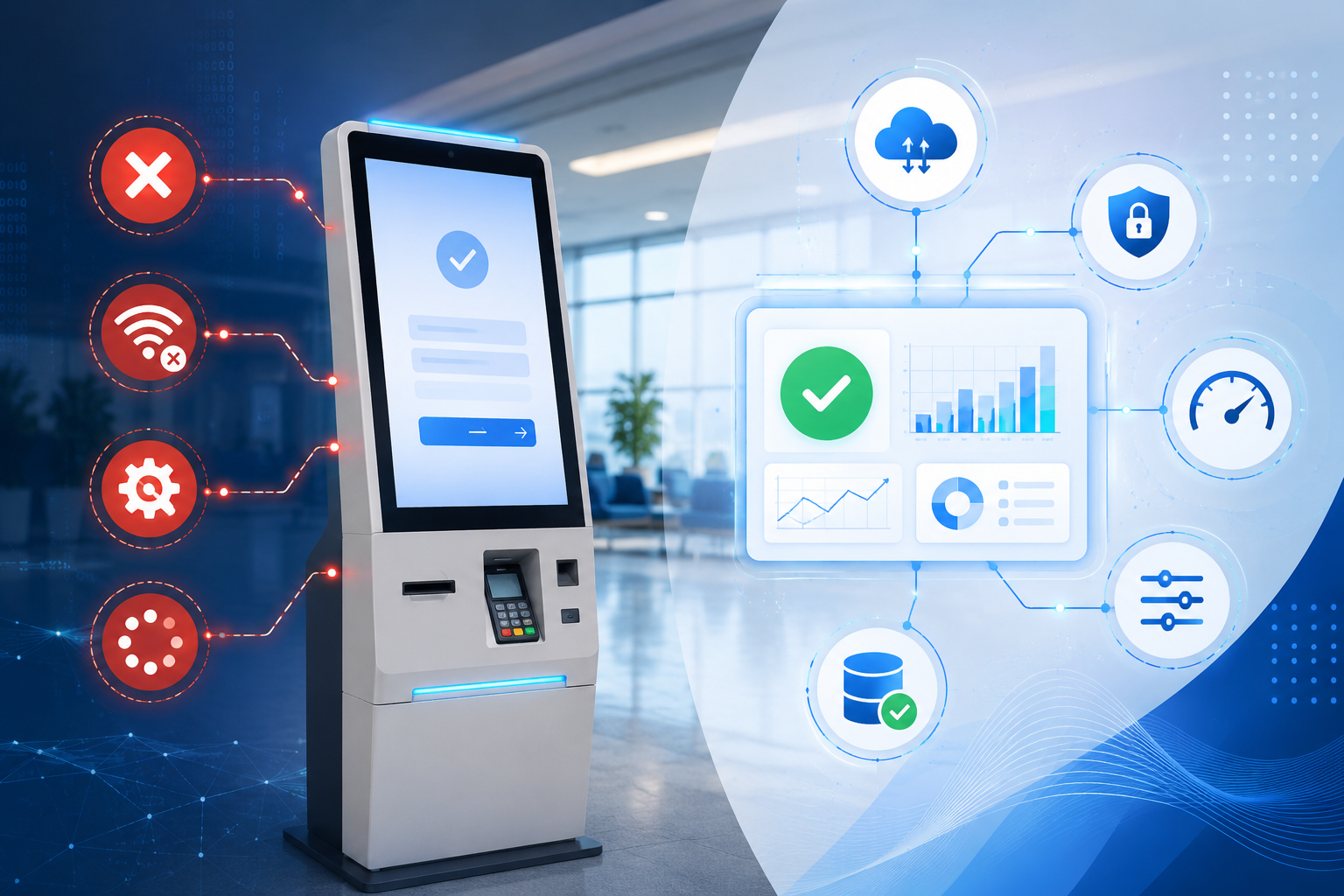
You have seen it happen. A kiosk sitting in a hotel lobby with an out of order sign taped to it. A queue is forming at a hospital front desk because the self service terminal is frozen on a loading screen. A visitor management system at a corporate office that nobody uses because it takes longer than signing in with a receptionist.
These are not hardware problems. In almost every case, they are software problems. Better yet, they are entirely preventable.
If you are already running kiosk operations or evaluating whether to add self service check in to your business, these check in kiosk software development failure points are worth understanding before you build or buy. The mistakes covered here show up repeatedly across deployments. It does not matter what industry you are in or how large the deployment is.
1. No Offline Mode, No Fallback Plan
The Problem
This is the most common and damaging failure in self service kiosk deployments.
During the test, the kiosk will function perfectly. It goes live. Then there is a network drop during the busiest check in hours of the day, for the next 20 minutes. The screen turns white or displays an error message, or the screen freezes completely.
Users walk away. Staff make efforts to assist. This means that even before a chance to be used, the kiosk is known to be unreliable.
The majority of kiosk software is designed under the premise that there is a consistent internet connection. After all, it’s the environment they typically test in. But that’s not the same in a production environment.
Network interruptions, congestion, and outages occur in a variety of areas, including hotel lobbies, hospital waiting rooms, event venues, and corporate offices. This means that the building without offline handling would be a building under conditions that are rarely found in the real world.
The Solution
Offline mode needs to be part of the architecture from day one. It should not be added later as a patch.
Here is how to approach it:
- Store essential check in data locally on the device so the flow can continue without an active connection
- Queue transactions locally and sync them to the backend once connectivity is restored
- Display a clear and reassuring message when the device is offline instead of showing a blank or broken screen
- Test connectivity failures during QA instead of focusing only on ideal user journeys
2. Session Data Bleeding Between Users
The Problem
The kiosk will be flawless while conducting the test. It goes live. There is also a network drop at a peak time of the day, check-in time, for a 20 minutes duration. White screen or error message (s) appear, or the screen freezes completely.
Users walk away. Staff make efforts to assist. This means that even before a chance to be used, the kiosk is known to be unreliable.
The majority of check in kiosk software development is designed under the premise that there is a consistent internet connection. After all, this is the environment that they usually test in. But this is not the same when it comes to production.
Network interruptions, congestion, and outages occur in a variety of areas, including hotel lobbies, hospital waiting rooms, event venues, and corporate offices. This would mean that the building to which it pertains, which does not have offline handling, would be a building in conditions that are rarely encountered in reality.
The Solution
Session isolation should be treated as a core feature. It is not simply a cleanup task.
To avoid these issues:
- Create a complete session reset function that clears local state, form data, cached responses, and UI elements at the same time
- Trigger the reset both after inactivity timeouts and after users explicitly end a session
- Display a transition screen between sessions so users know they are starting fresh
- Perform privacy audits during testing by intentionally leaving sessions incomplete and checking for leftover data
3. Peripheral Failures with No Recovery Path
The Problem
A check in a kiosk is rarely just a screen.
Typically, most deployments are linked to badge printers, receipt printers, card readers, ID scanners, bar code readers, and sometimes cameras for photo capture or facial recognition.
All of these peripherals can fail during a session. Then, many kiosk applications have no “gracious way” to respond.
This typically causes the screen to freeze, crash, or display a technical error code. Unfortunately, the user doesn’t know what the message means and what to do next.
This is a nuisance in a staffed environment. In an unstaffed deployment, it can stop the entire check in process until someone physically intervenes.
The Solution
Every peripheral integration needs its own recovery logic.
Some best practices include:
- Running health checks for connected devices at startup and throughout operation
- Creating a specific fallback workflow for each failure scenario
- Sending real time alerts to operations teams whenever a peripheral becomes unresponsive
- Replacing technical error codes with clear, user friendly messages
For example, if the badge printer is unavailable, the kiosk should still complete the check in process. Staff can then print the badge manually later.
Similarly, if a card reader fails, users should be offered another payment option or directed to a staffed counter.
4. Ignoring Real World Environmental Conditions
The Problem
This is often the difference between a kiosk that performs well in a demo and one that succeeds in production.
Screen glare from natural light can make interfaces difficult to read. Ambient noise in busy locations can make audio instructions ineffective. Users of different heights interact with touch targets that may have been designed around a completely different setup.
In addition, cold or wet hands can affect touch screen responsiveness in ways that controlled testing never reveals.
Most of these problems are discovered after launch. That means they are discovered by real users rather than by a QA team that still has time to fix them.
The Solution
Environmental testing should be part of the release process.
It should never be treated as an afterthought.
To prepare for real world conditions:
- Test the interface in the actual deployment location
- Evaluate visibility under real lighting conditions and at different times of day
- Test with users who match the demographics of actual visitors
- Check touch responsiveness with gloves if the kiosk will be used in colder environments
- Verify that text and buttons remain readable and accessible for users of different heights
5. Poor Integration with Backend Systems
The Problem
A check in kiosk that cannot reliably communicate with backend systems is not a self service solution. It is a liability.
The kiosk may connect to a property management platform, appointment scheduling system, visitor management application, or CRM. However, if data does not move correctly between those systems, problems begin to appear quickly.
Users complete their check in. Yet the information never reaches the staff dashboard. Duplicate records are created. Appointments are missed. Visitors appear as unregistered.
Eventually, staff members end up manually reconciling records. At that point, the efficiency benefits of self service disappear.
This usually happens when integrations are treated as a final step. APIs are added near the end of development. Error handling is minimal. Monitoring is limited or nonexistent.
As a result, failures often go unnoticed until operational issues begin piling up.
The Solution
Backend integration should be considered from the start of the project.
A strong approach includes:
- Mapping every data touchpoint before development begins
- Implementing retry logic for failed API requests
- Building dashboards or logging systems that surfMeta Title
- Common Check-In Kiosk Software Failures (And How to Avoid Them) | KioskSys
- Length: ~59 characters
- Meta Description
- Learn the most common check-in kiosk software failures, why they happen, and how to prevent them. Improve reliability, user experience, and kiosk performance with expert insights.
- Length: ~157 characters
- SEO-Friendly URL Slug\
- common-check-in-kiosk-software-failuresace sync errors in real time
- Running end to end integration testing that follows complete user journeys
- Documenting API dependencies so future updates do not unexpectedly break functionality
Conclusion
Most check in kiosk failures are not dramatic crashes. Instead, they are small problems that accumulate over time.
Eventually, users stop trusting the system. The kiosk becomes the thing people walk past on their way to the front desk.
Offline handling, session resets, peripheral recovery, environmental testing, and reliable backend integrations are not advanced features. They are the foundation of a kiosk deployment that works in the real world.
If you are building a new system or evaluating an existing one, use this list as a pre launch checklist. The problems are predictable. The solutions are well understood. Most importantly, fixing them before launch is far less expensive than fixing them after users have already made up their minds.