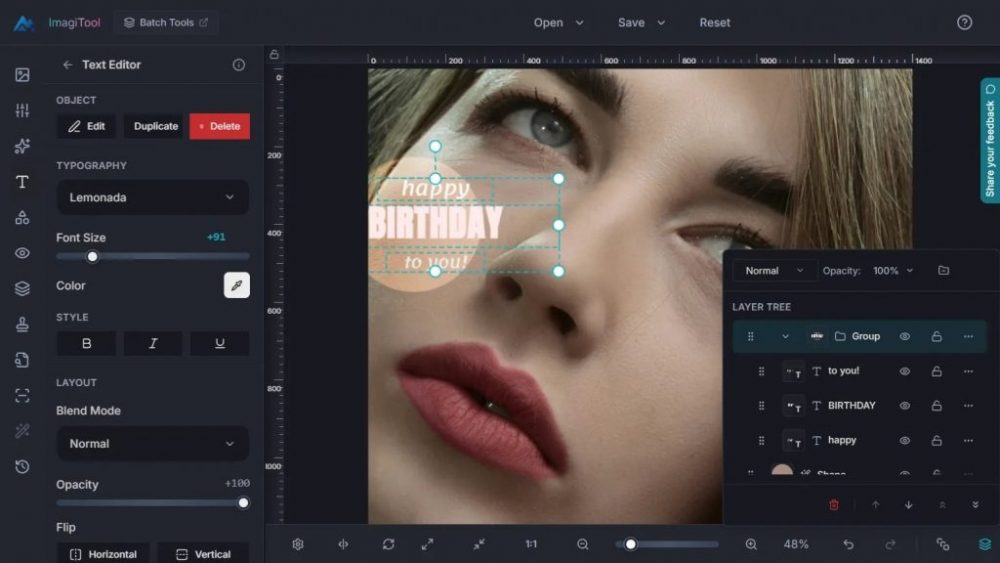
ImagiTool has announced a major update to its browser-based Photo Editor, introducing a comprehensive Layers and Groups workflow available free of charge.
You can now use the feature set in the ImagiTool Photo Editor.
The release puts the product beyond just resizing, converting, and compressing tools that work on their own and into a bigger editing environment that can be used for both creative composition and production delivery.
A Quick Summary
The new version adds:
- * A pop-up for the layer tree
- * Controls for selecting multiple items that are not next to each other or in a range
- * Actions to group and ungroup
- * Reordering layers by dragging and dropping them with insertion markers
- * Controls for locking and seeing
- * Controls for opacity and blend mode in the layer workspace
- * Stack actions like “move forward,” “send backward,” “move to top,” and “move to bottom.”
- * The Flatten Layers workflow, which includes keyboard shortcuts
The platform documentation says that you can switch the Layers pop-up on and off with “L” and “Flatten Layers” with “Ctrl/Cmd + Shift + E.”
Why This Release Is Important
In modern image editing, layer support is a basic requirement. However, many web editors still have broken implementations with limited grouping behavior, weak hierarchy control, or export preparation that isn’t connected.
The update to ImagiTool fills that gap by consolidating structure and delivery controls into a single workspace. This is especially important for teams that have to go through the same revision cycles over and over again, because layer movement, stack conflicts, and inconsistent exports can all cause unnecessary delays.
Feature Breakdown
1. A separate place to work on the layer tree
The new layer tree is the main place to handle stacks, make selections, and work with hierarchies.
2. Multi-Select for Useful Batch Editing
You can choose both toggle-style (Ctrl/Cmd + Click) and contiguous range (Shift + Click) selections with this system, which speeds up bulk operations.
3. Workflows for Grouping and Ungrouping
You can put selected layers into a group so that they can all be changed at once, and then you can take them out of the group when you need to make changes to each one.
4. Reordering by dragging and dropping with hierarchy cues
Insertion markers and drag handles make it easier to see where things are going when you reorder them, even in grouped structures.
5. States of Visibility and Lock
The update adds controls for hiding and showing things, as well as different lock behaviors that are meant to stop changes from happening by mistake while editing.
6. Controls for Blend and Opacity in Context
You can change the blend mode and opacity right in the layer workflow, which cuts down on the number of times you have to switch panels when you are working on a composite.
7. Stack Action Controls
Users can quickly do common hierarchy actions like bring forward, send backward, move to top, move to bottom, and delete selected layers.
8. Flatten for Final Delivery
Flatten Layers is built in as a final step for output that is ready to be exported. You can access it from UI controls and keyboard shortcuts.
Positioning at the Platform Level
The release shows that the product is going in a different direction: ImagiTool is being marketed as a full image editing platform instead of just a bunch of separate task pages.
This means that users will have a steadier workflow:
- * Make layered compositions
- * Group things together and stack controls
- * Make precise changes and add protections.
- * Finish and export in the same space
Who Gets the Most Out of It
The new workflow will probably be most helpful for:
- * E-commerce teams make sets of promotional images.
- * Social media and content teams are doing a lot of iterations.
- * Agencies that handle approvals in more than one round
- * Marketplace sellers are putting together text, badges, and pictures of products.
- * Internal marketing teams that need to quickly and easily make assets
Suggested Adoption Workflow
For teams that want to use the feature set, a good order is:
- 1. Make each visual part its own layer.
- 2. Use the multi-select tool to make logical blocks.
- 3. Put blocks that go together in groups early on.
- 4. Before making big changes, use naming, visibility, and lock states.
- 5. Do stack cleanup before giving approvals.
- 6. Only flatten at the end of the export stage.
Final Thoughts
The Layers and Groups release for ImagiTool’s web platform adds a more complete model for editing structures and features, typically found only in premium desktop workflows.
The update makes the platform more useful for professional and high-volume image production by adding organization, control, and export-readiness to a free browser experience.
The platform’s Layers and Groups help guide is a useful resource for information on how to set up and use the platform.