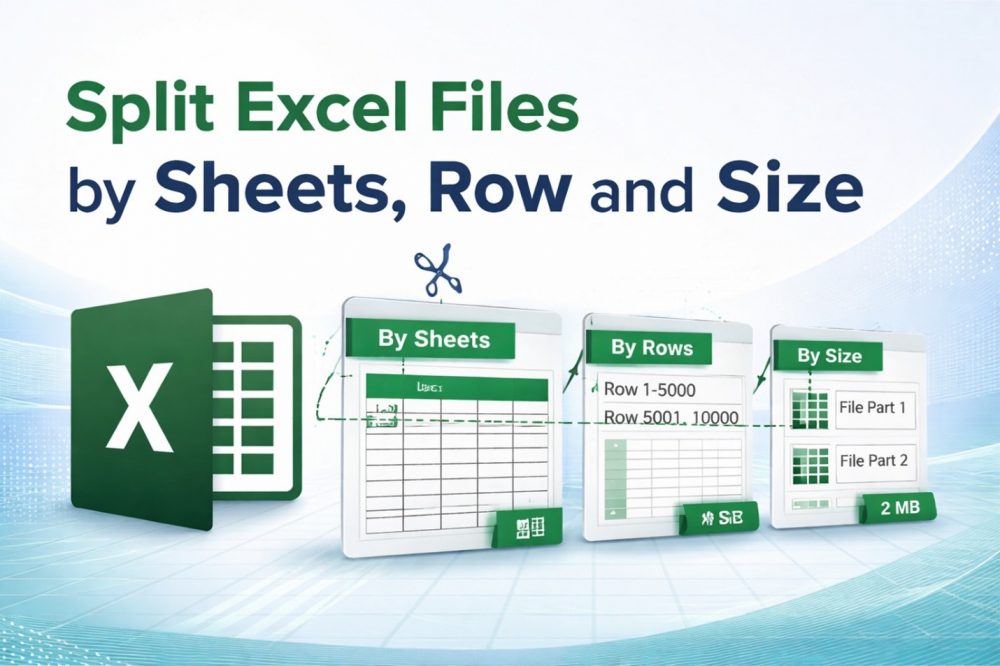
Summary: This write-up is going to explain the best ways to split Excel file for better management of large data sheets. Here we will use 5 different methods to break large Excel file using the copy-paste technique, the Save As option, the Power Query, and the VBA Macro options. And if you are unable to open large files manually, then we have suggested an automatic solution as well.
We work on Excel on a daily basis to manage our data in cells and columns. But because of adding new data on a daily basis, our file becomes larger and unmanageable. And due to large files, you will face multiple issues like:
- The Excel application keeps freezing and hanging.
- Large data files could be corrupted and damaged.
- You become unable to find or save any data.
- Excel application crashes while opening a data file.
Now, let’s understand the best methods to split Excel file into multiple parts.
Important Note: If you are unable to open your large file in Excel and have multiple big data files, then only the SysTools Excel Splitter Tool can split Excel file into smaller parts. Manual methods don’t support large files, so you should use this solution. It provides different Split Options, including advanced features. Install the demo version to understand performance.
How to Break Large Excel Files into Smaller Parts?
Splitting large Excel files is not an easy task, but we will explain each technique step by step. We will use these methods to split Excel file:
- Using Copy-Paste Technique
- By Saving As XLSB
- Split Excel File using VBA Macro
- Using Power Query Option
Method 1: Copy-Paste Data
If your file is containing smaller size data, then the copy-paste technique would be a better option to split Excel file data.
- Open your large file in Excel.
- Copy the required data or filter it.
- Open a new workbook.
- And paste the copied data here.
- Now repeat the same process for each file.
Method 2: By Saving as XLSB
The XLSB format is lighter than the XLSX and XLS formats. So, saving your large file as .xlsb makes your file smaller.
- Open your large file.
- Choose the File tab from the top.
- Select the Save As from the list.
- Choose XLSB from the Save As list.
- Now, put a name and save it.
Method 3: Split Excel File using VBA Code
- Use Alt + F11 keys to open the VBA editor in Excel.
- Hit on the Insert >> Module options.
- Now use this code in the editor:
- Select the F5 key to run the code.
Method 4: Power Query Option
This is a built-in option of the Excel application. Follow the given steps to split Excel file:
- Open your Excel file.
- Choose the “Data” >> “Get Data” >> “From File” >> “From Workbook” option.
- Now import your large file in Power Query.
- Next, apply filters and conditions accordingly.
- Hit on the Close & Load To >> table to load the filtered data into new sheets.
- Finally, save each file separately.
What are the Setbacks of Manual Methods?
- MS Excel installation must be needed on your system.
- These techniques don’t support too large files, which cannot be opened in Excel.
- Also, manual methods don’t work with multiple data files.
Alternate Tool for Large Excel Files
The above suggested solution is one of the best options to split Excel file into smaller parts. It’s a two-in-one solution that allows you to split and merge Excel file into one easily. Also, it comes with amazing capabilities, which make it the first choice of experts. Read the features and working steps for better information.
How to Split Excel File into Multiple Parts?
- Firstly, install the Excel splitter tool on your machine.
- Import your large sheets using the Add Files / Folders options.
- Choose Split Options according to your requirements.
- After that, select the saving location using the Change button.
- Finally, choose the Split button to split large Excel file.
Why Only Excel Splitter Tool better than manual techniques?
- This software can split Excel file by size, records, and sheets easily.
- This software is compatible with all Excel file sizes without restrictions.
- You can split multiple data files in bulk at the same time.
- Also, it maintains the original details of the file, including header, color, text, font size, style, etc.
- It is 100% safe and secure, and it works with an internet connection.
Final Comment
This blog has explained the possible and best ways to split Excel files using 5 different manual and automatic methods. You should first try manual methods for smaller data, and if you have multiple large files that can’t be opened in Excel, then use the suggested solution. Automatic software is the best technique for large data files. You can even contact us through live chat support.