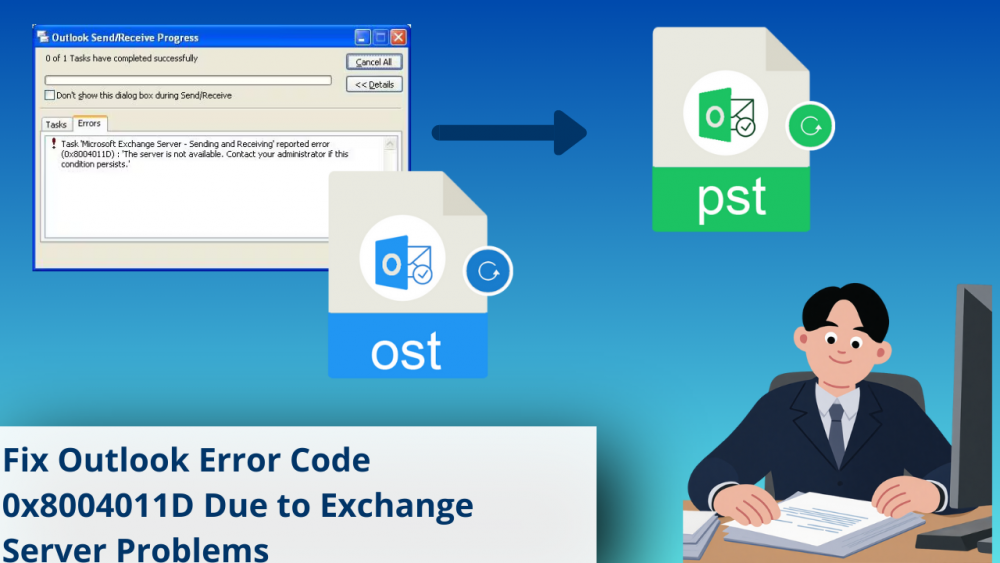
Microsoft Outlook is a good email client, but problems with Exchange Server can sometimes stop it from working properly. One problem is Outlook Error Code 0x8004011D, which usually happens when Outlook can’t connect to the Exchange Server in a stable way. Because of this, users may have trouble sending or receiving emails.
This error happens a lot when Outlook tries to sync the local OST file with the server, when it updates folders, or when it syncs mailboxes. If users keep getting the error message, it usually means that the server is down, and they should contact the administrator.
Why Does Outlook Error 0x8004011D Occur?
This error can happen for a number of reasons, from short-term connection problems to serious data corruption. Some common reasons are:
- Problems with connecting to the network or server
- The Outlook profile is broken
- An OST file that is broken or too big
- Outlook or the system crashes out of the blue
- Outlook add-ins that don’t work
- Infection with a virus or malware
- Errors with storage
If any of these problems happen, Outlook might not be able to sync with the Exchange Server.
Manual Methods to Resolve Outlook Error 0x8004011D
1. Check Network and Server Availability
Make sure that the internet connection is working properly. Use a web browser to try to get to Outlook Web App. If users can open emails online, the problem is probably with the Outlook app or the data file on their computer.
2. Enable or Refresh Cached Exchange Mode
Cached Exchange Mode allows Outlook to store a local copy of mailbox data. You can enable or refresh this setting from Control Panel → Mail → Email Accounts. Restart Outlook after making changes to allow proper synchronization.
3. Create a New Outlook Profile
Outlook can’t talk to the Exchange Server if its profile is corrupt. This problem is often fixed by making a new profile and changing the settings for the email account.
4. Rebuild the OST File
Rebuilding the OST file can help if it is damaged. Shut down Outlook, find the OST file, make a copy of it, and then delete the original file. Outlook will automatically make a new OST file and sync mailbox data when it starts up again.
Problems with Manual Methods
- Most manual solutions need Exchange Server to be up and running. If the server is down, Outlook can’t resynchronize data.
- Creating a new Outlook profile or rebuilding the OST file may cause permanent loss of unsynchronized emails.
- When the Exchange account is disabled or deleted, manual methods don’t work with corrupted or orphaned OST files.
- These steps require some technical know-how and can take a long time for people who aren’t technical.
- It’s often hard to find broken add-ons or background problems by hand.
- You can’t count on manual fixes for OST files that are very big or very broken.
A More Reliable Approach to Resolve the Error
In some cases, trying to fix the problem by manual method may not work or may cause data loss because mailbox items are not in sync. In these situations, it is important to use a professional, trustworthy, and dedicated solution. A more advanced OST conversion tool can help to get the mailbox data without having to sync with the server.
When Outlook can’t connect to the Exchange Server or the OST file is hard to get to, a specialized tool like FixVare OST to PST Converter can be useful. This kind of solution lets users get mailbox data straight from the OST file and make it available in Outlook again.
Steps to Use It
- Get the software and run it on the computer.
- Open the tool and choose the OST file that is causing the problem.
- Allow the software look through and analyze the mailbox data.
- See emails, contacts, calendars, and other things first.
- Convert the data to PST format so that Outlook can read it.
This method makes sure that important mailbox data is still available even if there are problems with Outlook or Exchange Server.
Conclusion
Outlook Error Code 0x8004011D is often linked to problems with connecting to Exchange Server, corrupted profiles, or damaged OST files. Checking network connectivity, turning on Cached Exchange Mode, making a new profile, or rebuilding the OST file by hand can often fix the problem, but they don’t always work. When these methods don’t work, using a professional and advanced solution is a reliable way to get to and restore Outlook data without relying on a server. This makes sure that the email keeps going smoothly and keeps data from being lost.