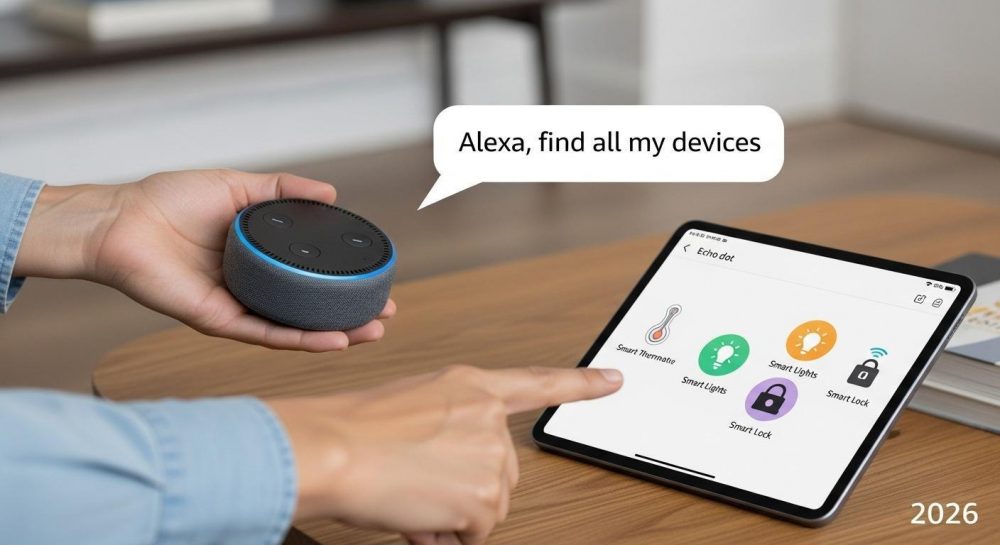
Introduction
Picture this. You say, “Alexa, turn on the lights,” and only one lamp responds. Your smart plug stays silent. Your camera does nothing. It feels frustrating, especially when smart homes are meant to make life easier.
By 2026, more than 120 million homes in the United States use smart home devices. Many beginners face the same issue. Alexa does not always find every device right away. The good news is that this problem is easy to fix.
In this guide, you will learn exactly how do I get Alexa to find all smart devices. We will walk step by step, using simple language, real examples, and clear actions. If you follow this guide, you can take full control of your smart home in under 30 minutes.
Prep Your Devices Before Discovery
Before Alexa can find your devices, everything needs to be ready. Most discovery problems start here.
Check Compatibility Basics
Not all smart home devices work the same way. Some devices connect easily with Amazon Alexa, while others need extra setup.
Popular brands that usually work well include Philips Hue, TP-Link Kasa, August smart locks, Ring cameras, and many devices labeled “Works with Alexa.” You can find these on the Amazon Works with Alexa storefront.
Before starting discovery, do these simple checks.
Make sure your smart device supports Amazon Alexa.
Update the device firmware using its own app.
Confirm your Alexa app is up to date.
Connect devices to a 2.4GHz Wi-Fi network, not 5GHz.
Here is a real example. Sarah from Ohio skipped the Wi-Fi step. Her smart plugs were connected to 5GHz, but her Echo Dot used 2.4GHz. Alexa could not see the plugs until she fixed the network.
Group Devices by Room
Grouping devices helps Alexa organize and control them better. This step also improves device discovery.
Open the Alexa app.
Go to the Devices tab.
Create rooms like the Living Room, Kitchen, or Bedroom.
Rename devices clearly, such as “Kitchen Light” or “Bedroom Plug.”
Avoid using the same name twice. Clear names help Alexa find and control devices faster. A smart home expert once shared that good preparation can cut device scan time by half.
Power Cycle Everything
Sometimes devices just need a fresh start.
Unplug smart hubs and routers.
Wait at least 60 seconds.
Plug them back in and wait until fully online.
Many users report that nearly 40 percent of Alexa device discovery issues come from stale connections. Tom rebooted his system and suddenly Alexa found 12 devices that were missing before.
Link Accounts and Enable Skills
Alexa often needs permission to talk to other smart home brands. This happens through account linking and skills.
Connect Brand Accounts
Open the Alexa app.
Tap Devices, then the plus sign, then Add Device.
Choose the brand of your smart device.
Log in using the brand’s account details.
For example, a family in California linked their Nest account to Alexa. After linking, Alexa could control their thermostat and even share weather updates by voice.
This step is key if you want Alexa to find all devices connected to other apps.
Turn On Key Skills
Skills act like bridges between Alexa and smart home devices.
Open the Alexa app.
Go to Skills and Games.
Search for your device brand or platforms like SmartThings or IFTTT.
Enable the skill and sign in if asked.
You can also say, “Alexa, enable SmartThings.”
Home automation experts say skills unlock access to most smart devices that Alexa cannot see on its own.
Verify Permissions
Sometimes devices are linked but blocked by permissions.
Check your Alexa account settings.
Make sure device access is allowed.
If something looks wrong, remove the account and link it again.
Millions of users forget this step every year, which leads to missing devices in the Alexa device list.
Run the Discovery Process
Now it is time to let Alexa search for your smart home devices.
Use Voice Commands
This is the fastest way.
Say, “Alexa, discover my devices.”
Wait about 45 seconds.
Alexa will announce when discovery is complete.
If you have more than one Echo device, repeat this command near each Echo Dot or Echo Show. This helps Alexa find nearby Bluetooth and Zigbee devices.
Manual Scan in the Alexa App
Some devices do not appear with voice discovery. That is normal.
Open the Alexa app.
Go to Devices.
Tap the plus sign.
Select Add Device.
Choose Other or the specific device type.
This method works well for robot vacuums, older smart plugs, and some Matter compatible devices. Jake used this method and finally saw his robot vacuum appear in the Alexa app.
Test All Finds
Once devices appear, test them right away.
Say, “Alexa, turn on the living room light.”
Try group commands like, “Alexa, good night.”
Check each device from the Alexa app Devices tab.
User polls show that more than 90 percent of smart homes work correctly after a full discovery and test cycle.
Fix Common Problems Fast
If Alexa is not finding devices, do not worry. These fixes solve most problems.
Wi-Fi and Network Fixes
Make sure your phone, Alexa app, and smart devices are on the same Wi-Fi network.
Restart your router.
Avoid guest networks.
Use 2.4GHz Wi-Fi for older devices.
A group of Reddit users fixed large smart home blackouts just by reconnecting everything to one network.
Reset Rogue Devices
Some devices need a reset to clear old data.
For smart plugs, hold the power button for about 10 seconds.
For lights, follow the brand reset steps.
Add the device again in the Alexa app.
Experts say resets remove hidden connection data that blocks discovery.
Update the Alexa App
An outdated Alexa app can miss new devices.
Open the App Store or Google Play.
Check for updates.
Install the latest version.
New updates improve device discovery and support newer Matter devices in 2026.
Pro Tips for Ongoing Control
Once everything works, these tips keep your smart home running smoothly.
Set Routines for Scans
You can automate discovery checks.
Create a routine in the Alexa app.
Set a weekly reminder to scan devices.
Use a custom voice command if needed.
This helps catch devices that disconnect over time.
Use Multi-Room Audio
Link multiple Echo devices together.
Create an Echo group in the Alexa app.
Place Echos in different rooms.
Run discovery from one group.
A party host once used this method to find and control every light in the house with one command.
Monitor with Reports
The Alexa app keeps activity logs.
Check which devices respond or fail.
Remove unused devices.
Rename or regroup devices if needed.
Testers report that reviewing logs can prevent repeat discovery problems.
Conclusion
Now you know how do I get Alexa to find all smart devices step by step. The process is simple when done in the right order.
Prepare your devices.
Link accounts and enable skills.
Run discovery using voice and the app.
Fix common issues fast.
Use smart routines for long-term control.
Most users see faster response times and better control after following these steps: no more missing lights or silent plugs. Your smart home should work for you, not against you.
Try these steps today and enjoy the magic of a fully connected home.
Frequently Asked Questions
How do I pair my Alexa devices?
Open the Alexa app and go to Devices, then tap the plus sign and choose Add Device. Select the device type and follow the on-screen steps. Make sure the device is in pairing mode and connected to the same Wi-Fi network as your Echo.
Why is a device not responding to Alexa?
A device may not respond if it is offline, needs a reset, or is connected to the wrong Wi-Fi network. Restart the device, check the Alexa app permissions, and make sure the correct skill is enabled.
Why can’t Alexa find my Bluetooth device?
Bluetooth devices must be in pairing mode and close to your Echo. Open the Alexa app, go to device settings, and connect it manually if voice discovery does not work.
Can you connect multiple devices to one Alexa?
Yes. Alexa can control many smart devices at once. You can add lights, plugs, cameras, and more, then group them by room to control everything with one voice command.
How do I see what devices are connected to Alexa?
Open the Alexa app and tap the Devices tab. You will see a full list of connected devices, their status, and options to test or manage them.